Oflync Billing Desk
A free, offline billing counter for small and medium businesses. Install it on the shop computer, add your products, and start printing GST receipts — no internet, no subscription, no account needed.
Why we built it
Most small shops — tea stalls, bakeries, cafés, kirana stores, salons, pharmacies, boutiques — still bill by hand or on costly software that needs the internet and a monthly fee. Oflync Billing Desk gives these businesses a professional billing counter for free:
- Free for SMEs — no licence fee, no per-bill charge, no subscription. The app is open source.
- Works fully offline — bills, products, customers and reports are saved on the shop computer. A power cut or internet outage never stops the counter.
- Your data stays with you — nothing is sent to Oflync servers. You decide when to back up and where to keep the backup.
- Made for the counter — big touch-friendly tiles, an on-screen keyboard, barcode and QR scanner support, and cheap 58 mm / 80 mm thermal printers.
- Ready to grow — customer records use the same fields as the Oflync customer registry, so you can connect to Oflync cloud later without re-entering data.
What you can do
| Feature | What it does |
|---|---|
| Fast billing | Tap product tiles or scan a barcode, change quantities, add a custom item, apply a discount and submit. Bills are numbered automatically by financial year (for example 26-27/000001). |
| GST receipts | CGST + SGST or IGST worked out per item, prices with or without GST, round-off, and your GSTIN printed on the receipt. You can switch GST off if you are not registered. |
| Thermal printing | Prints to ESC/POS receipt printers over USB or the network (IP and port), on 58 mm or 80 mm paper, with multiple copies if needed. |
| Products and categories | Colour-coded categories, prices, GST rate and optional barcode for each product. Hide items that are out of season without deleting them. |
| Customers with QR cards | Save regular customers with a name, phone, address and PIN code. Each customer gets a QR card — scan it at the counter to fill in their details on the bill. |
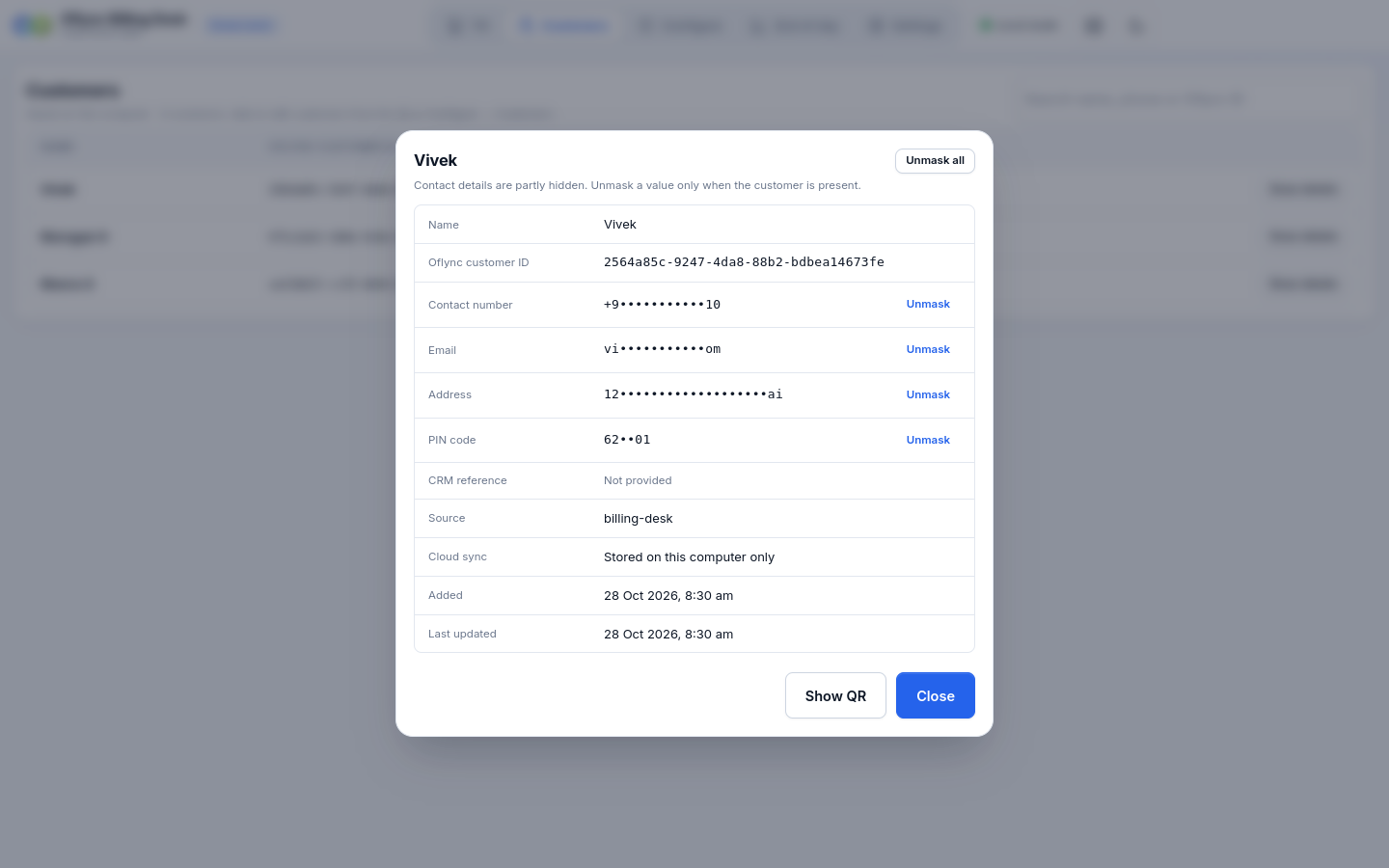
| Privacy by default | Phone numbers, emails and addresses are partly hidden (for example 98••••••45) until you choose to show them. |
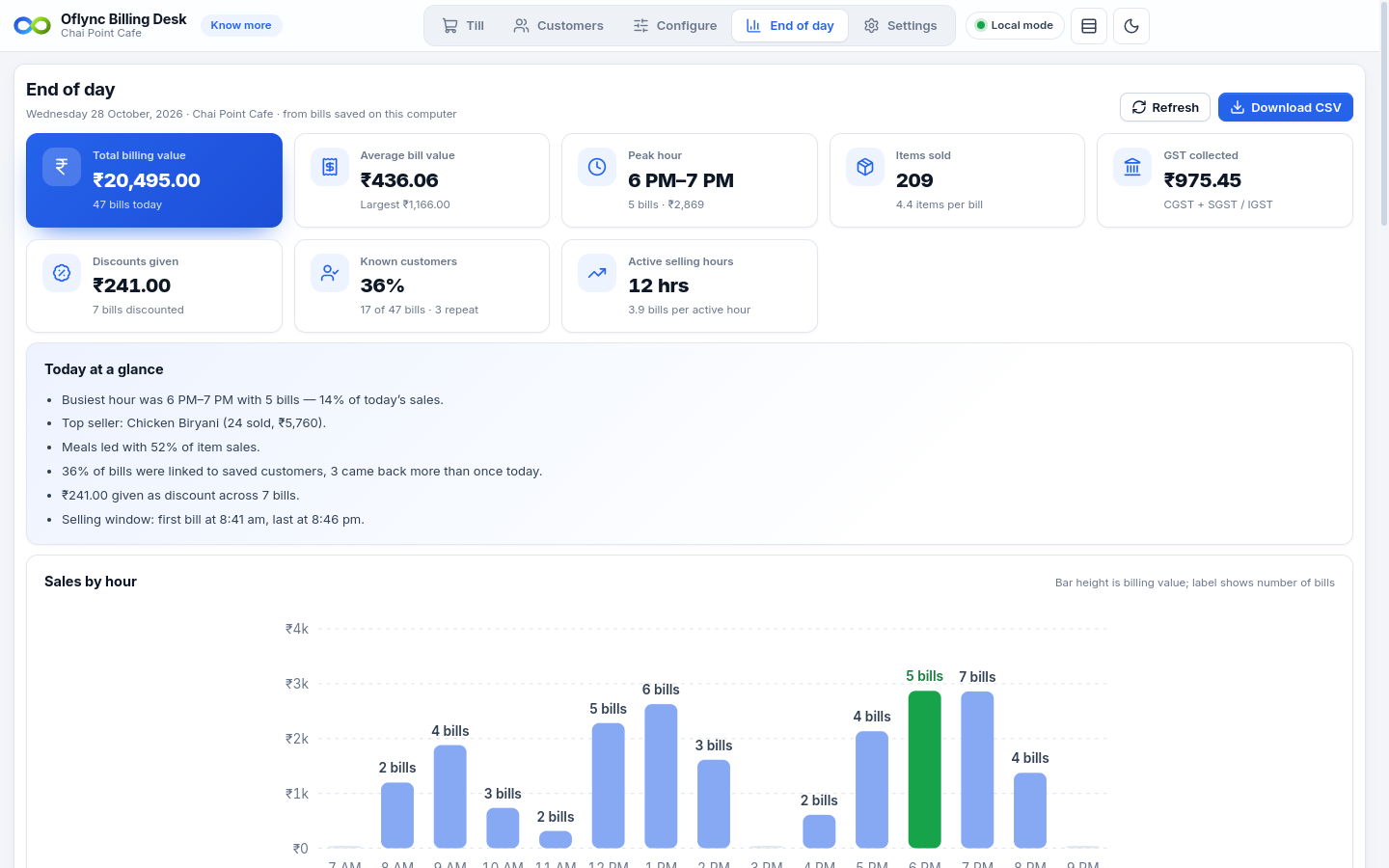
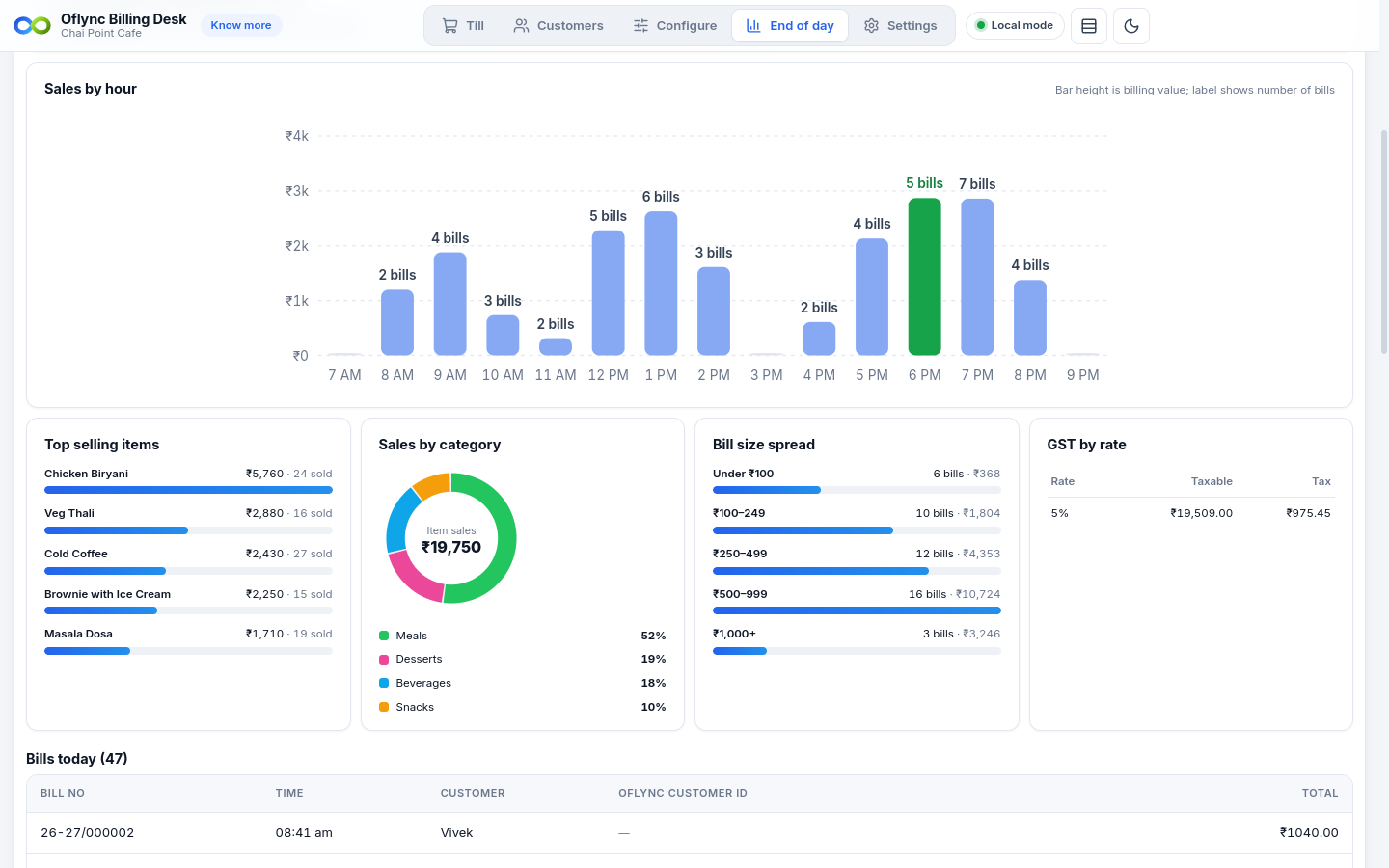
| End-of-day insights | Total billing value, bills per hour, the busiest hour, top-selling items, category share, bill sizes, GST by rate and repeat customers — plus a CSV download for your accountant. |
| Touch screen ready | Choose an on-screen keyboard or a physical keyboard. Light and dark themes, comfortable or compact spacing. |
| Backup and restore | Export everything to a single backup file and restore it on the same or a new computer. |
Screenshots
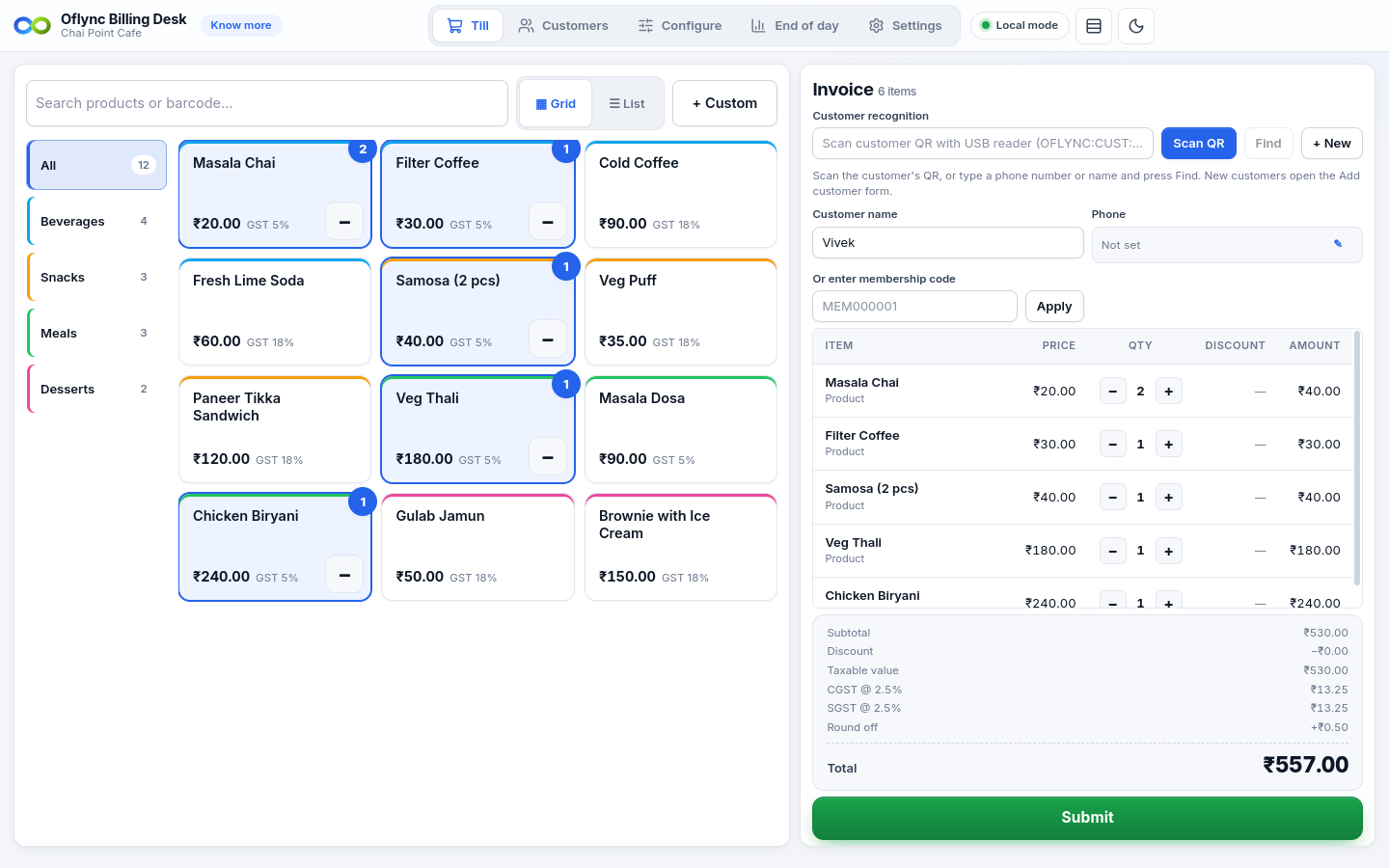
Billing counter
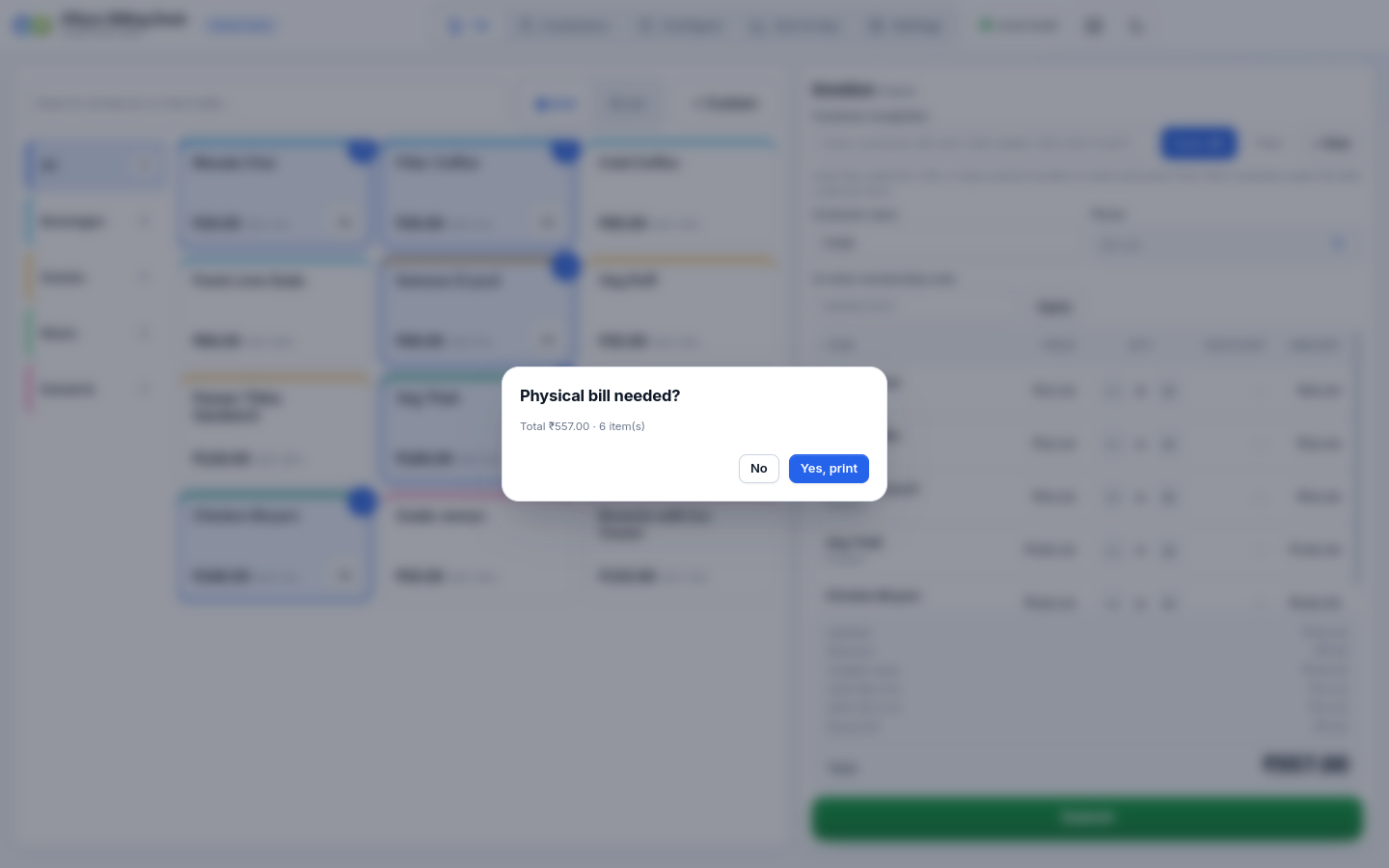
Tap tiles to add items. The invoice on the right shows the GST split and the total. After Submit, choose whether to print a paper bill.
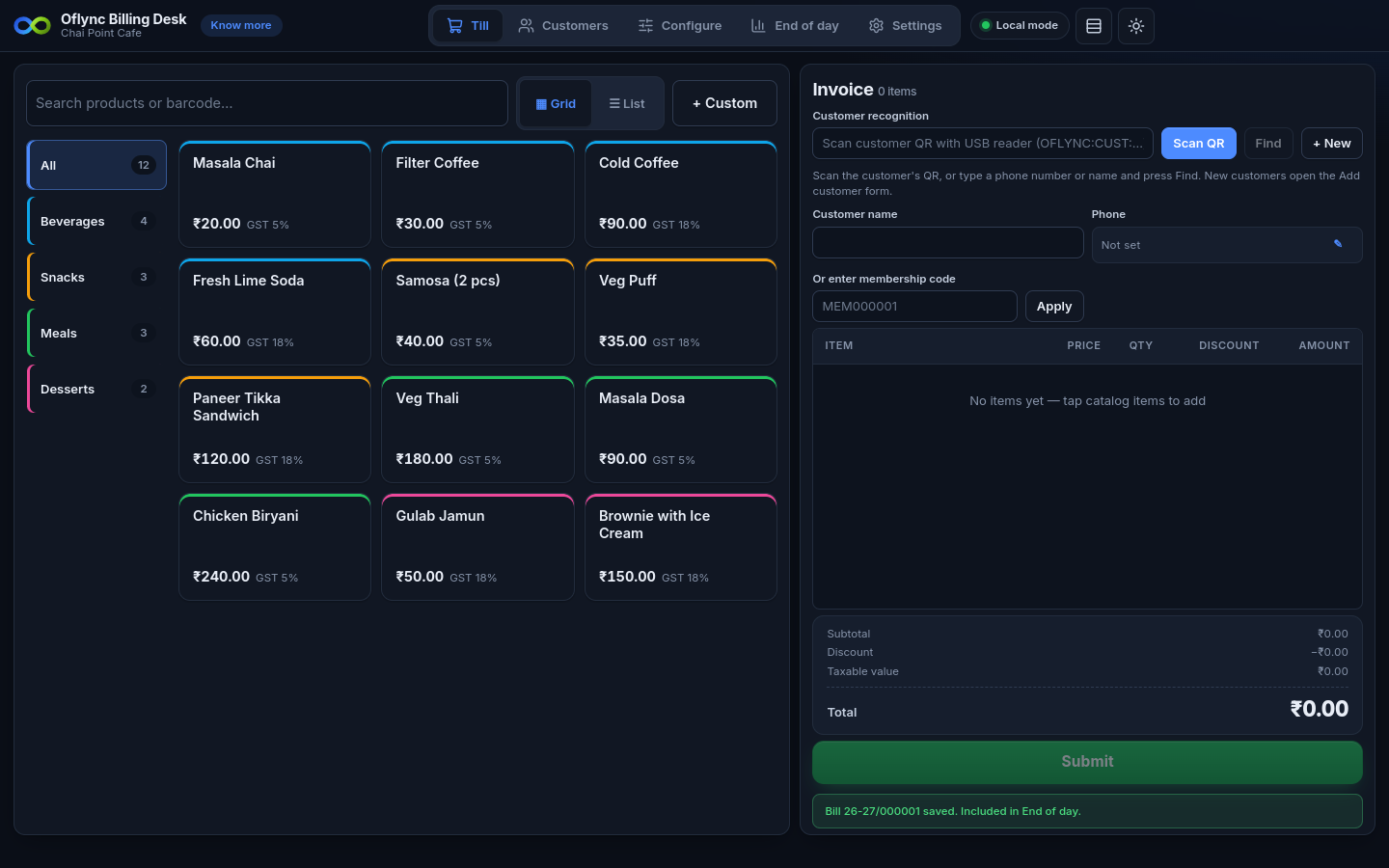
The dark theme suits dim counters and evening shifts:
Customers
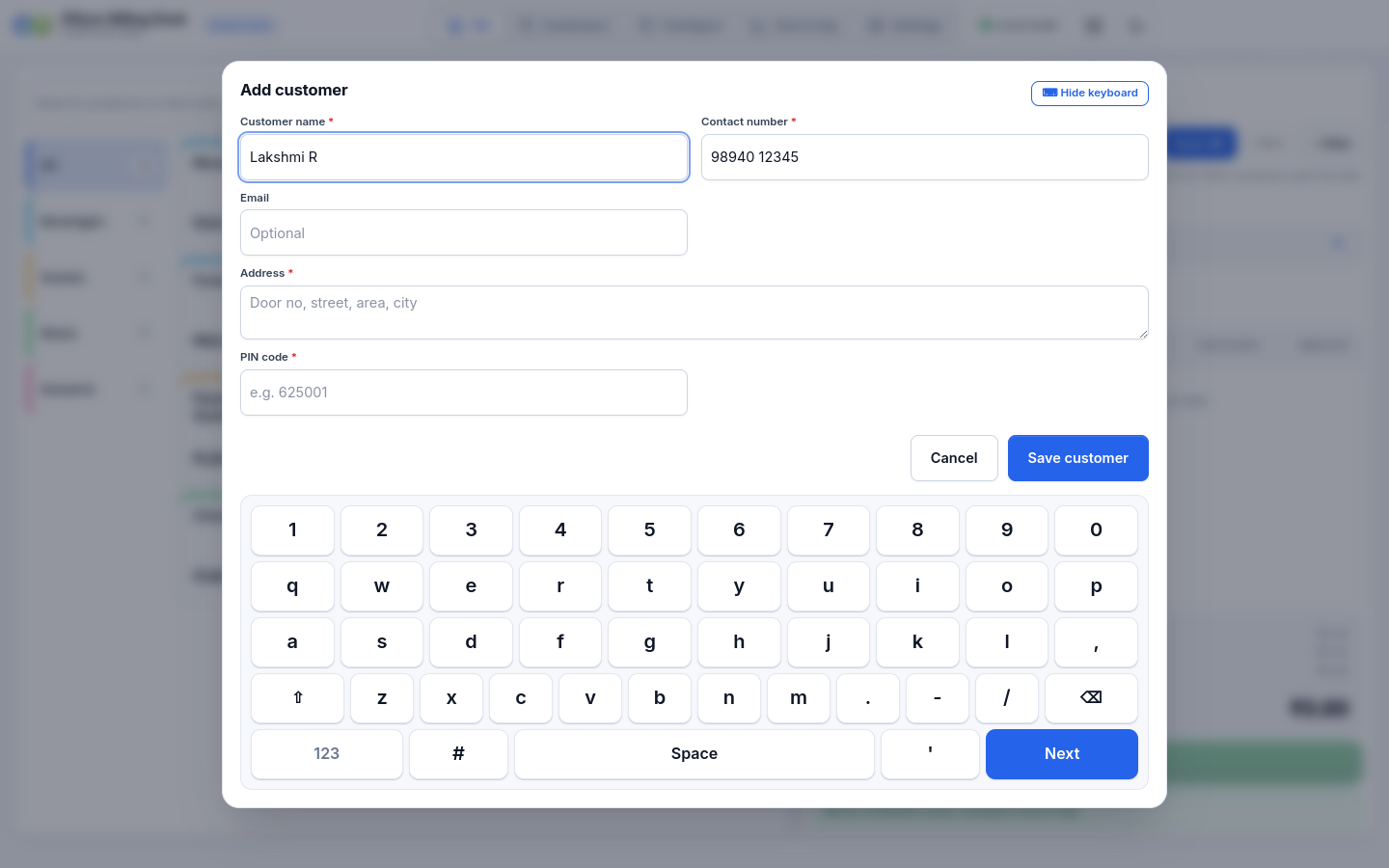
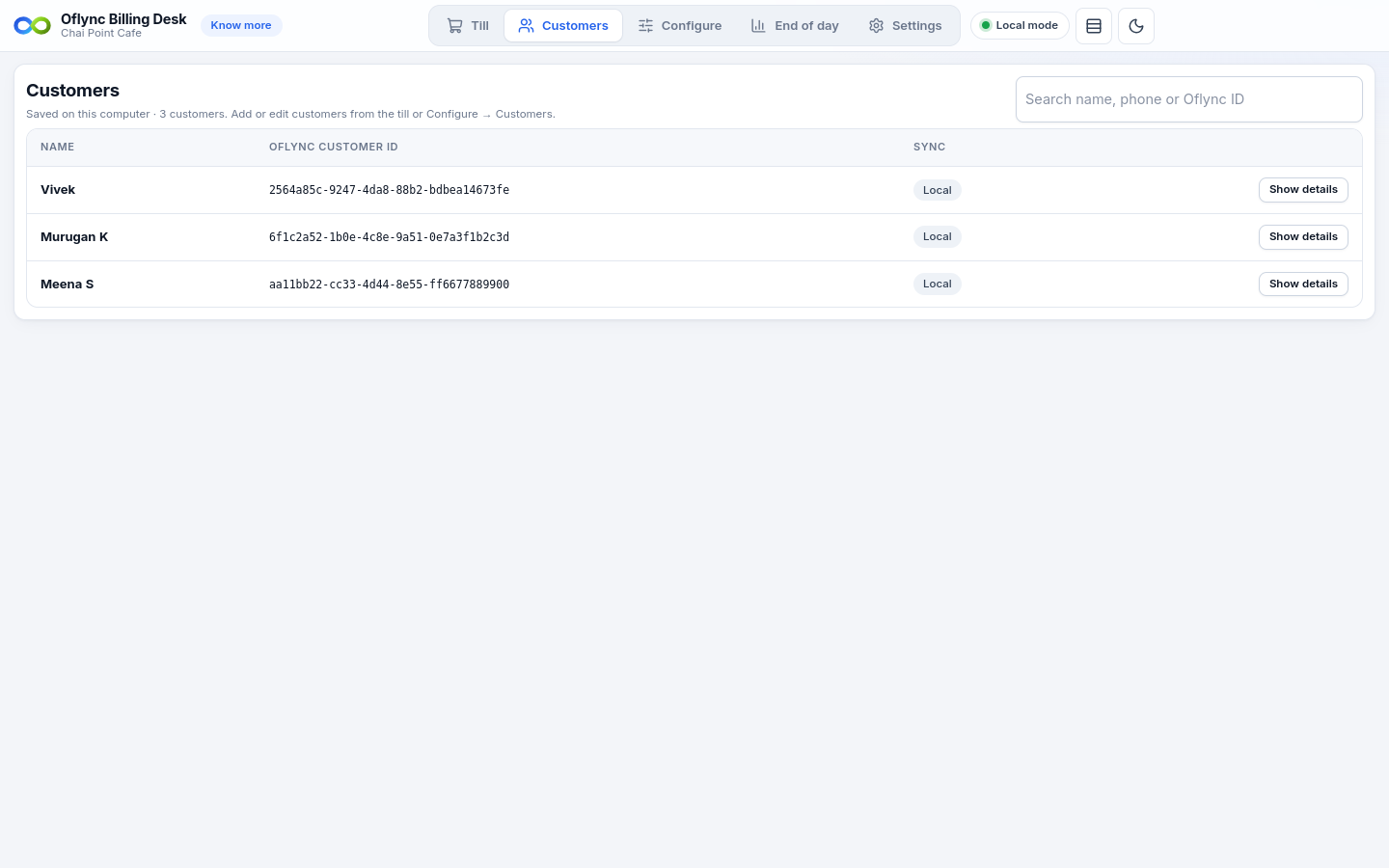
Add a customer straight from the counter. On touch screens the on-screen keyboard opens automatically.
The Customers screen lists only names and Oflync customer IDs. Open Show details to see the rest — contact details stay masked until you unmask them.
End-of-day insights
See the day's business at a glance before you close the counter.
Configure your shop
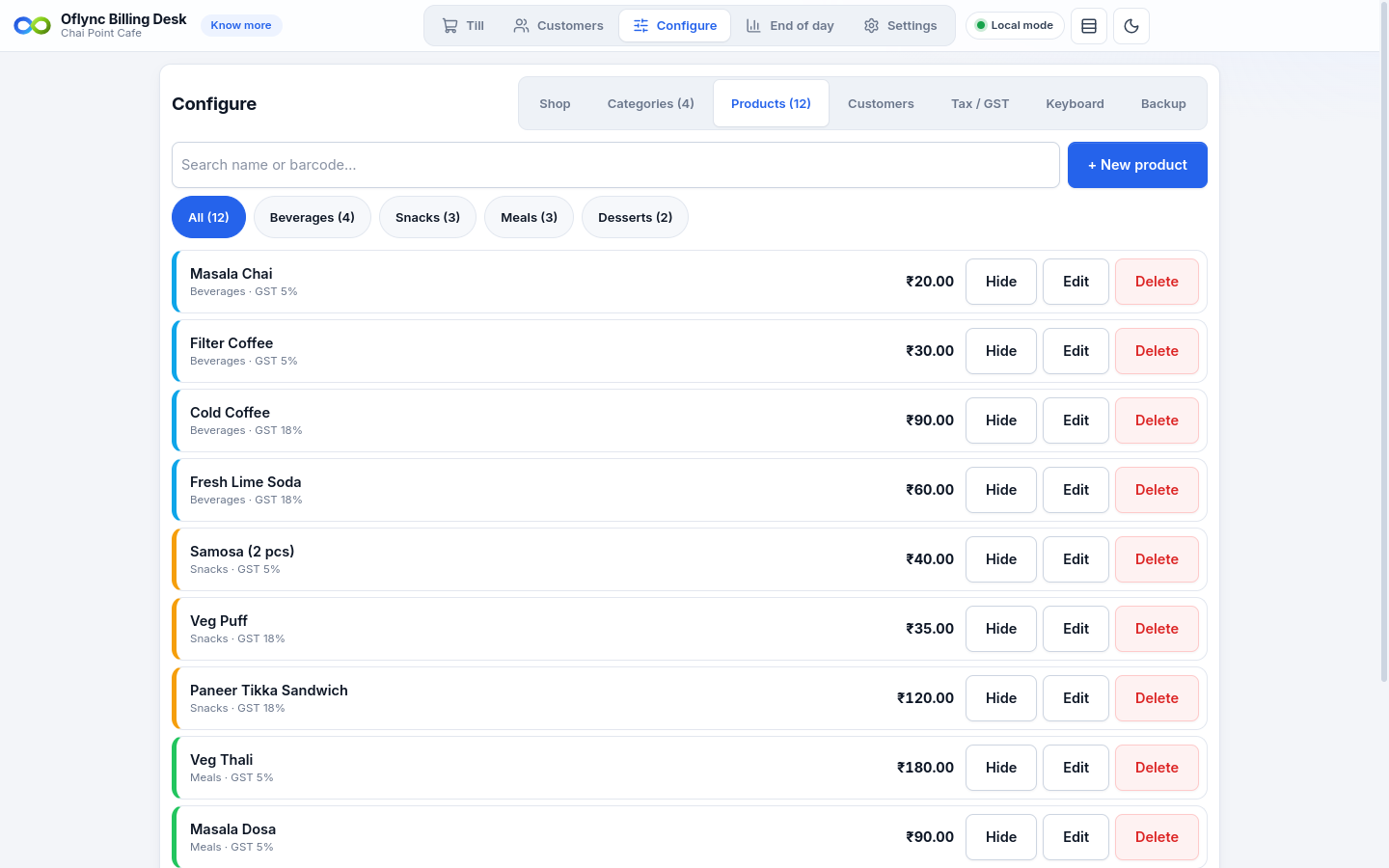
Set up shop details, categories, products, customers, GST, keyboard and backups from one place.
System requirements
| Minimum | |
|---|---|
| Operating system | Ubuntu 20.04 or newer, Debian 11 or newer, or another 64-bit Linux; Windows 10 or 11 (64-bit) |
| Processor | 64-bit (x86_64 / amd64) |
| Memory | 4 GB RAM |
| Disk | 500 MB free |
| Screen | 1280 × 720 or larger; touch screens supported |
| Printer (optional) | Any ESC/POS thermal receipt printer, 58 mm or 80 mm, over USB or network |
| Scanner (optional) | Any USB barcode / QR scanner that types like a keyboard |
Supported hardware
The Billing Desk runs on any ordinary computer. These add-ons are optional, but they make the counter faster.
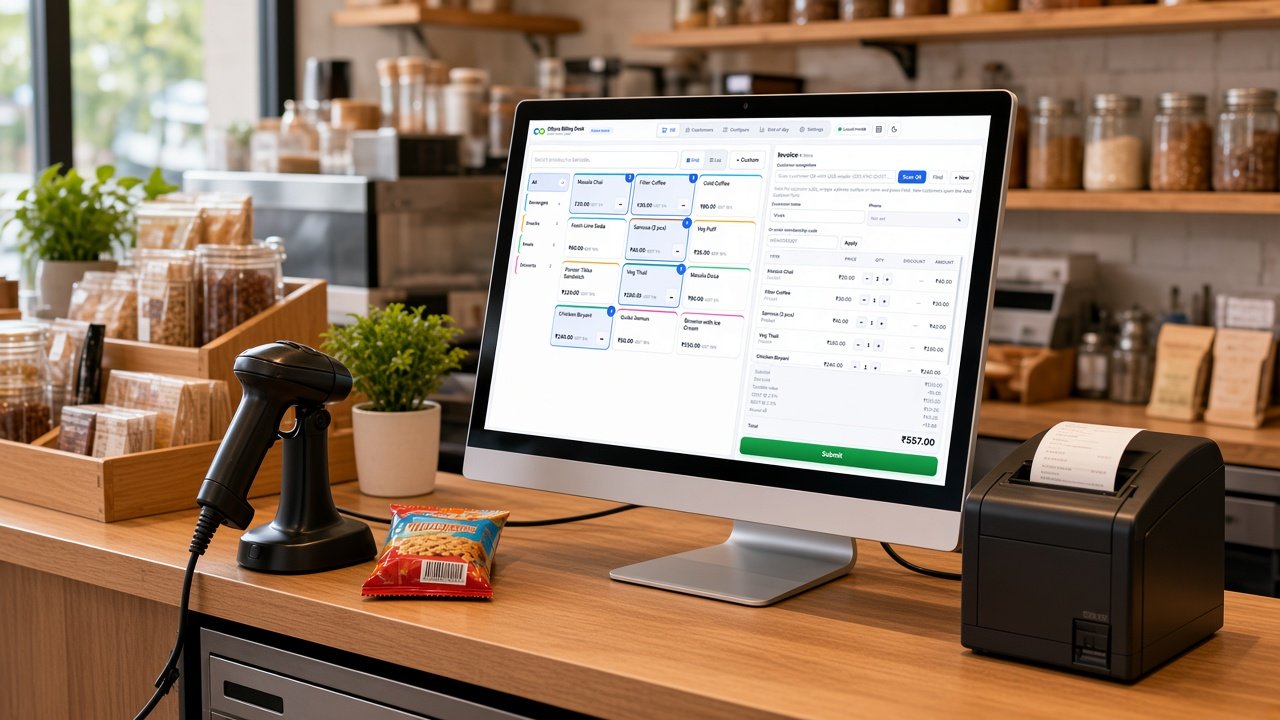
A typical counter: a computer or touch screen running the Billing Desk, a USB barcode / QR scanner, and a thermal receipt printer. A cash drawer is optional. (Illustration.)
| Device | What to look for | Example |
|---|---|---|
| Barcode / QR scanner | A USB scanner that works as a keyboard ("plug and play", "HID" or "keyboard emulation"). Choose a 2D scanner if you want to scan customer QR cards as well as product barcodes. | Barcode scanner on Amazon |
| Thermal receipt printer | An ESC/POS thermal printer with 58 mm or 80 mm paper, connected over USB or LAN. | Thermal printer on Amazon |
| Touch screen (optional) | Any touch monitor or all-in-one PC. Turn on the on-screen keyboard in Configure → Keyboard. | — |
- Scanner: a 1D (laser/linear) scanner reads only product barcodes. You need a 2D scanner for the customer QR cards.
- Printer: check that the listing says ESC/POS and match the paper roll width (58 mm or 80 mm) when you buy paper. Most shop thermal printers from Epson, TVS, Xprinter, Rugtek and similar brands work.
- No extra drivers are needed for the scanner. Printers on Windows need the maker's driver — see Connect a USB receipt printer (Windows).
Connect a barcode / QR scanner
- Plug the scanner into a USB port. It works straight away on Linux and Windows.
- Add each product's barcode in Configure → Products (scan it into the Barcode field).
- On the Till, just scan — there is no need to click a box first. A product barcode adds the item to the bill, and a customer QR card fills in that customer's details. The app tells them apart automatically.
If nothing happens or the scanner types strange characters, set it to the US keyboard layout with an Enter suffix, using the setup barcodes in its manual.
Download
The current version is 0.1.0-beta.1. Download it from the release page. Each download is a .zip with one installer inside.
| Platform | Download | Inside the zip |
|---|---|---|
| Ubuntu / Debian (recommended for Linux) | Oflync-Billing-Desk-0.1.0-beta.1-linux-amd64.zip | .deb package |
| Other Linux (portable) | Oflync-Billing-Desk-0.1.0-beta.1-linux-x86_64_AppImage.zip | .AppImage |
| Windows 10/11 (64-bit) | Oflync-Billing-Desk-0.1.0-beta.1-win-x64.zip | .exe installer |
0.1.0-beta.1 is the first public beta. It is ready for daily billing, but take a backup from Configure → Backup at the end of each day.
On Linux you can also download from a terminal:
cd ~/Downloads
wget https://github.com/oflync/app-dist/releases/download/0.1.0-beta.1/Oflync-Billing-Desk-0.1.0-beta.1-linux-amd64.zip
Check the download (optional)
Make sure the file was not damaged or changed on the way. On Linux:
sha256sum Oflync-Billing-Desk-0.1.0-beta.1-linux-amd64.zip
On Windows (PowerShell):
Get-FileHash .\Oflync-Billing-Desk-0.1.0-beta.1-win-x64.zip -Algorithm SHA256
The value must match the SHA-256 shown next to the file on the release page, or this table:
| File | SHA-256 |
|---|---|
Oflync-Billing-Desk-0.1.0-beta.1-linux-amd64.zip | 4d74ae9d9b033dd9c62185f39c3dde531c5a8476b49b6e901b4ce5249adbf73f |
Oflync-Billing-Desk-0.1.0-beta.1-linux-x86_64_AppImage.zip | 25020a1a0ce60005cf89ea3becbf93427a8e06c4889db77192323b161ad36ae4 |
Oflync-Billing-Desk-0.1.0-beta.1-win-x64.zip | 7fe7931b51c54087edd682c75a17b4dd1bfc8e6a2b61d418607ce895eba173b8 |
Install
Ubuntu / Debian (.deb) — recommended
cd ~/Downloads
unzip Oflync-Billing-Desk-0.1.0-beta.1-linux-amd64.zip
sudo apt install ./Oflync-Billing-Desk-0.1.0-beta.1-linux-amd64.deb
Then open Oflync Billing Desk from the app menu (press the Super/Windows key and type Oflync). You can also start it from a terminal:
oflync-billing-desk
apt install ./file.deb, not double-clickThe ./ matters — it tells apt to install the file in the current folder and pull in any missing system libraries. sudo dpkg -i also works, but does not fetch missing libraries.
Other Linux (AppImage)
The AppImage runs without installing:
cd ~/Downloads
unzip Oflync-Billing-Desk-0.1.0-beta.1-linux-x86_64_AppImage.zip
chmod +x Oflync-Billing-Desk-0.1.0-beta.1-linux-x86_64.AppImage
./Oflync-Billing-Desk-0.1.0-beta.1-linux-x86_64.AppImage
If it does not start, see the AppImage question in the FAQ.
Windows 10/11
- Right-click
Oflync-Billing-Desk-0.1.0-beta.1-win-x64.zipand choose Extract All…. - Double-click
Oflync-Billing-Desk-0.1.0-beta.1-win-x64.exe. - If Windows shows "Windows protected your PC", click More info → Run anyway. The beta installer is not code-signed yet.
- Choose the install folder (the default is fine) and click Install.
- Open Oflync Billing Desk from the desktop shortcut or the Start menu.
The app installs for the current Windows user only, so it does not need administrator rights.
First-time setup
Do these once, in order. Everything is under Configure in the top bar.
- Shop — enter your shop name, contact number and address. These print at the top of every receipt.
- Tax / GST — turn GST on if you are registered, add your GSTIN, choose the default GST rate and whether your prices already include GST. Leave it off if you are not registered.
- Categories — create groups such as Beverages, Snacks and Meals, each with its own colour.
- Products — add each item with its price, category, GST rate and, optionally, its barcode.
- Keyboard — pick On-screen keyboard for touch screens, or Physical keyboard.
- Printer — open Settings → Thermal printer, choose USB or Network, select 58 mm or 80 mm paper, and press Test print.
Connect a USB receipt printer (Linux)
Linux lets only members of the lp group use printers. Add your user once:
sudo usermod -aG lp $USER
Log out and log back in (or restart) for this to take effect. Then plug in the printer, open Settings → Thermal printer, choose USB and pick it from the list — or leave it on Auto-detect.
To check that Linux sees the printer:
ls -l /dev/usb/lp*
Connect a USB receipt printer (Windows)
-
Install the printer's Windows driver from its maker and check it appears in Settings → Bluetooth & devices → Printers & scanners.
-
Open the printer's Printer properties → Sharing tab, tick Share this printer and give it a short share name without spaces, for example
POS58. -
In Oflync Billing Desk, open Settings → Thermal printer, choose USB and type the share path:
\\localhost\POS58 -
Press Test print.
Connect a network receipt printer
Choose Network, enter the printer's IP address (for example 192.168.1.100) and port 9100. Print the printer's self-test page to find its IP address — usually by holding the feed button while switching it on.
Daily use
- Open the app — it starts on the Till.
- Tap products or scan barcodes. Use + Custom for a one-off item.
- For a regular customer, scan their QR card or type their phone number and press Find. Press + New to save a new customer.
- Press Submit, then choose Yes, print or No.
- At closing time, open End of day to see the day's insights and press Download CSV to keep a copy.
- Once a week, take a backup from Configure → Backup and copy it to a pen drive or cloud folder.
Update to a new version
Download the new version and install it over the old one the same way. Your bills, products and customers are kept.
On Linux:
sudo apt install ./Oflync-Billing-Desk-<new-version>-linux-amd64.deb
On Windows, run the new .exe installer.
Uninstall
On Linux:
sudo apt remove oflync-billing-desk
On Windows: Settings → Apps → Installed apps → Oflync Billing Desk → Uninstall.
Uninstalling removes the app but keeps your data. To delete the data as well (this cannot be undone — take a backup first), delete the data folder:
| Platform | Data folder |
|---|---|
| Linux | ~/.config/Oflync Billing Desk/ |
| Windows | %APPDATA%\Oflync Billing Desk\ |
FAQ
Is Oflync Billing Desk really free?
Yes. There is no licence fee, no subscription and no per-bill charge. It is open source and made for small and medium businesses.
Do I need the internet?
No. Billing, printing, customers, reports and backups all work fully offline. The status pill in the top bar shows Local mode when the app is working on its own.
Where is my data stored? Does Oflync see my sales?
Everything is saved on the shop computer only:
| Platform | Data folder |
|---|---|
| Linux | ~/.config/Oflync Billing Desk/ |
| Windows | %APPDATA%\Oflync Billing Desk\ (paste this into the File Explorer address bar) |
Nothing is uploaded to Oflync servers. Keep regular backups from Configure → Backup — if the computer's disk fails, the backup is your only copy.
How do I move to a new computer?
On the old computer, go to Configure → Backup → Export backup and copy the file to a pen drive. Install the app on the new computer and use Restore from backup.
The app shows in the menu but does not open (Ubuntu 23.10 and newer)
Newer Ubuntu releases restrict the security sandbox that the app uses. The .deb installer sets this up automatically, so first try reinstalling it:
sudo apt install --reinstall ./Oflync-Billing-Desk-0.1.0-beta.1-linux-amd64.deb
If it still does not open, run this once:
sudo chmod 4755 "/opt/Oflync Billing Desk/chrome-sandbox"
To see the error message, start the app from a terminal with oflync-billing-desk.
The AppImage does not open
On Ubuntu 23.10 and newer, AppImages hit the same sandbox restriction. Use the .deb instead, or start the AppImage like this:
./Oflync-Billing-Desk-0.1.0-beta.1-linux-x86_64.AppImage --no-sandbox
On older systems, if you see an error about libfuse.so.2, install it:
sudo apt install libfuse2
My USB printer is not detected or prints nothing
- Check the cable and power, and that the printer has paper.
- Make sure the paper width (58 mm or 80 mm) matches your printer.
On Linux:
- Make sure your user is in the
lpgroup — rungroupsand look forlp. If it is missing, runsudo usermod -aG lp $USERand log out and back in. - Check that Linux sees the printer with
ls -l /dev/usb/lp*. - In Settings → Thermal printer, pick the device from the list instead of Auto-detect.
On Windows:
- Check the printer is shared (Printer properties → Sharing) and that the share name matches what you typed, for example
\\localhost\POS58. - Print a Windows test page from Printer properties. If that fails too, reinstall the printer driver.
Windows says "Windows protected your PC"
The beta installer is not code-signed yet, so Microsoft SmartScreen warns about it. Click More info → Run anyway. Check the download against the SHA-256 in Check the download if you want to be sure it is genuine.
Windows says the app needs the internet or shows a firewall prompt
The app does not need the internet. If Windows Defender Firewall asks, you can choose Cancel — billing and USB printing keep working. Allow access on Private networks only if you use a network (LAN) receipt printer.
Which printers work?
Any thermal receipt printer that supports ESC/POS commands — most 58 mm and 80 mm printers sold for shops do, including common USB and LAN models from Epson, TVS, Xprinter, Rugtek and similar brands. See Supported hardware for an example.
Can I use a barcode or QR scanner?
Yes. Any USB scanner that works like a keyboard is supported. Scan a product barcode on the Till to add it to the bill, or scan a customer's QR card to fill in their details. QR cards need a 2D scanner — see Supported hardware.
Can I bill without GST?
Yes. Turn GST off in Configure → Tax / GST. Receipts are then printed without a tax breakup.
Why are customer phone numbers partly hidden?
To protect your customers' privacy when others can see the screen. Open Customers → Show details and press Unmask only when you need the full value.
What is the Oflync customer ID?
Every saved customer gets a unique ID. It appears on their QR card and in the end-of-day CSV, and it lets you link the customer to the Oflync cloud later without creating them again.
Can I use it on a touch screen without a keyboard?
Yes. Choose On-screen keyboard in Configure → Keyboard. A keyboard then appears whenever you type a name, phone number or search term.
Is there a macOS version?
Not yet. Linux and Windows are supported today.
Where do I report a problem or ask for help?
Report Issue with the app version, your operating system (on Linux, the output of lsb_release -a) and a screenshot of the problem. On Linux, the terminal output from oflync-billing-desk also helps.